
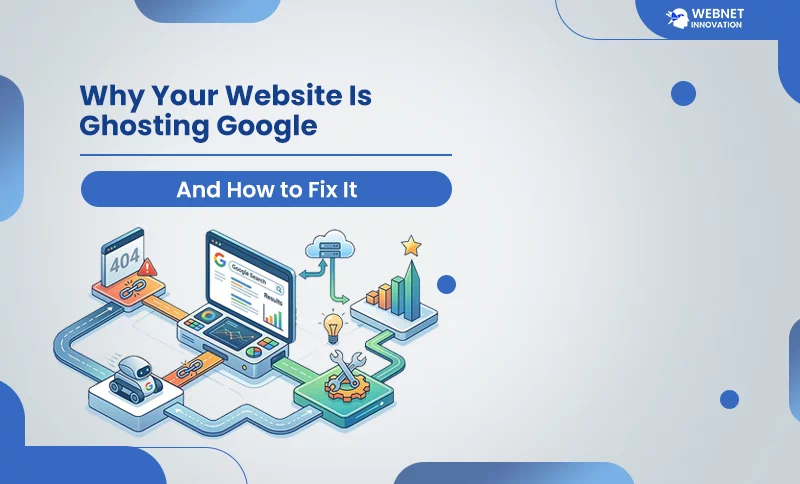
You spent three weeks perfecting that React component or obsessing over your Python backend, only to find your pages aren’t showing up anywhere near page one. It’s frustrating. You’re checking your CSS for the tenth time, refreshing Search Console like it owes you money — but the problem isn’t your code. The main problem is that Google can’t find the front door to your site.
Here is the hard truth, and maybe most developers do not want to hear it: If Google cannot crawl you, it cannot rank you. It really is that simple.
Fixing crawl errors is the unglamorous, blue-collar work of SEO. It doesn’t get the hype that content marketing or link building gets. Nobody’s writing Twitter threads about 301 redirects. But crawlability is the foundation everything else is built on. If you want to start digital marketing with Google Search Console effectively, you need to stop thinking of it as just another dashboard. Start treating it like a diagnostic heart monitor for your website — because that’s exactly what it is.
Google Search Console: The Best SEO Tool You Aren’t Using Correctly
Let’s be blunt. There are hundreds of shiny SEO tools out there charging $100 a month to tell you what you already know. They dress it up in colorful graphs and brand it as “AI-powered,” but the data is often third-party approximations of reality.
Google Search Console doesn’t work that way. Its Google Search Console best SEO tool status remains completely undisputed — because the data comes straight from the source. It’s the only place where Google directly tells you why it’s annoyed with your website. No middleman, no estimations.
When marketers mention the factors that help a Google ranking, usually the first things they talk about are good content, backlinks, or E-E-A-T. Those things absolutely matter. But “crawlability” is the silent killer that rarely gets a seat at the table. If your server is throwing 5xx errors or your JavaScript is rendering too slowly for Googlebot to process, your brilliant content doesn’t matter one bit. It might as well not exist.
Before you spend another dollar on content production or link outreach, make sure Google can actually get into your site.
Decoding the “Index Coverage” Nightmare
The main coming and going of Google Search Console is the Indexing report things are likely to get heated there. You’ll be staring at a red bar labeled “Errors” on the chart on the very first day you open the report.
One thing that the majority of the crawl errors have in common is that they are relatively straightforward and can easily be managed once you understand them, similar to how a server log is confusing at first but makes sense after you learn the language.
The Infamous 404: The Broken Link Trap
We all know that situation well. Maybe you got a draft or remove of a dated post, changed a URL slug for better SEO, or decided to update your site navigation, and then, all of a sudden, Google tries to find a page that doesn’t exist anymore. It’s like Google is after a ghost.
Having just few 404 errors won’t do any harm to your rankings. It is quite normal for any website to have them from time to time. On the other hand, a large increase in 404s will definitely tell Google that the website is not well kept. The feeling gets stronger over time and gradually decreases your crawl budget and your reputation without you even realizing it.
How to Fix 404 Errors
- If you see an error “Not Found 404”, take action and set 301 redirects for every deleted or 404 page. 301 redirection means, tells Google and browsers that a page has permanently moved, passing most of the original page’s authority to the new URL.
- If you’re on WordPress, you don’t need to take high-pressure about it; redirect plugins handle this with a simple UI — no coding required.
- If you’re a developer working in Node.js, PHP, or a modern framework, handle redirects at the server or router level for the cleanest implementation.
- Never let a high-traffic dead link just sit there. Check the “Referring pages” data in GSC to find which internal or external pages still link to your 404s, and update them.
Server Errors (5xx): When Your Hosting Quits on You
There is a huge difference between 5xx and 404 errors. When Googlebot renders a website and encounters a 5xx, it doesn’t mean the page is gone — it means your server didn’t even answer the door. In simple words, the user has reached your website, but the server is not able to display anything.
This is one of the most damaging issues when it comes to Google ranking factors. If your server is consistently down or slow when Googlebot comes knocking, Google will gradually reduce how often it visits. Crawl frequency drops, fresh content goes unnoticed, and your rankings start to slide — all because of an infrastructure problem you might not even know exists.
How to Fix 5xx Server Errors
- Check your server logs with your developer immediately. Don’t fully depend on GSC alone — log in to your hosting account because your hosting control panel or log management tool will show you exactly when and why failures occurred.
- Ask yourself: Are you hitting PHP memory limits? Is your MySQL connection timing out under load? Check first on priority: Is your React app running on a shared hosting plan that can’t handle concurrent requests?
- If you’re running a modern JavaScript-heavy site on bargain shared hosting, it’s time to have an honest conversation about your infrastructure. Upgrading to a VPS or cloud hosting isn’t a luxury at that point — it’s a necessity.
- After resolving the server issue, use the URL Inspection Tool in GSC to request re-indexing for affected pages.
Mastering Robots.txt and Sitemaps
If you’re serious about your website SEO and want to truly use Google Search Console as the best SEO tool in your workflow, you have to get two things right: your XML sitemap and your robots.txt file. These are your website tracking systems, just like a GPS, and a misconfigured GPS is worse than no GPS at all.
Sometimes a developer only focuses on what website code should be written for good design, not for SEO. Here is where the mistake starts, developers include URLs in the website’s sitemap that are set to noindex. You’re essentially inviting Google to dinner and then locking the gate when it arrives. It sends mixed signals, wastes crawl budget, and confuses the indexing process.
Your Sitemap and Robots.txt Checklist
- Clean your sitemap ruthlessly. Only keep URLs you genuinely want indexed and ranked. Remove paginated pages, admin URLs, duplicate content, and any page with a noindex tag.
- Audit your robots.txt file carefully. It’s more common than you’d think for developers to accidentally block their entire /assets/ or /dist/ directory. If Google can’t access the CSS and JavaScript files needed to render your page, it may misread your content entirely.
- Use the URL Inspection Tool for individual pages. This tool shows you exactly how Googlebot renders your page in real time — including what it sees, what it misses, and what errors occur during the process.
- Submit your sitemap directly through GSC under the “Sitemaps” tab and monitor it regularly for errors.
The Developer’s Edge: Why Technical SEO Is Just Debugging
Here’s a framing that should resonate with every developer reading this: technical SEO is just debugging for a different kind of user.
As you know, Googlebot is virtually a headless browser. When it visits your website’s pages, tries to render them and reports back what it found. When your JavaScript is too heavy, your server too slow, or your database queries are dragging page load times past three seconds — the bot gives up and moves on. That’s not an SEO problem. That’s a performance problem wearing an SEO costume.
Google allocates a crawl budget to each website, which refers to the limited time and resources it is ready to use for crawling your web pages. So, if every page is loaded for two seconds due to reasons such as unoptimized images, heavy React libraries, or unindexed Database queries, the bot would run out of that budget very quickly.
It leaves before it ever finds your deeper, more valuable inner pages.
Performance Fixes That Directly Impact Crawlability
- Use a compressed version of images on your website. A single unoptimized hero image can increase your page load time.
- Analyze your JavaScript file size and try to reduce the size. Don’t use the full library code for a single function.
- If you’re a hard-code developer, enable server-side rendering or static generation for critical pages if you’re working with frameworks like Next.js.
- Use a CDN for better page load time. It reduces latency for users and bots in different geographic locations.
Key Takeaways for a Healthier, More Crawlable Site
As we are on end point, here’s what actually matters when it comes to fixing crawl errors and using Google Search Console properly:
- Check GSC at least once a week. Don’t wait for your traffic to fall off a cliff before opening the Indexing report. Catching errors early keeps them manageable.
- Resolving 5xx errors is the top priority when you or GSC encounter them. A server error is far more damaging than a 404; it signals infrastructure instability rather than just a missing page
- Optimize for mobile rendering first. Google uses mobile-first indexing. If your CSS breaks on a small screen, even a successful crawl might result in a failed or poor-quality index.
- Build a strong internal linking structure. Your work does not stop after submitting the sitemap in GSC. Do plan for interlinking to help Googlebot discover deeper pages organically, especially new content that hasn’t been indexed yet.
- Request re-indexing after every major fix. Use the URL Inspection Tool to manually push updated pages back into Google’s queue. Don’t just fix the error and wait — be proactive.
Stop Guessing and Start Fixing
Magic keywords or viral content tricks are not a way to earn money from blogging or scale a business through organic search. It’s built for a site that functions reliably — one that Google can access, crawl, and trust.
Fix your crawl errors. Clear the technical debt sitting inside your Google Search Console. Give your content the foundation it needs to actually be discovered, indexed, and ranked. The content you’ve already written deserves better than to be invisible.
Your next move is simple: Open Google Search Console right now. Click on “Indexing,” identify the top error on the list, and fix just that one. Then request re-indexing using the URL Inspection Tool. Do this consistently — once a week — and within a few months you’ll be operating at a technical level that most of your competition hasn’t even thought about yet.
The unglamorous work is almost always the work that matters most.