


To set up Google Analytics 4 on WordPress, create a GA4 property in your Google Analytics account, add a web data stream with your site’s URL, and connect the resulting Measurement ID to your site — either by pasting it into an SEO plugin like Rank Math or Yoast, or through Google Tag Manager for more control. Once connected, GA4 tracks visitor behavior as individual events rather than the old pageview model Universal Analytics used.
Table of Contents
I still run into website owners who set up their analytics and simply abandoned them. They have no idea it stopped tracking data entirely when Google retired Universal Analytics back in mid-2023. If that sounds like you, you’re not alone, and it’s worth fixing properly rather than just clicking through a setup wizard without understanding what you’re actually looking at afterward.
I want to walk through this the way I actually set it up for clients — not just the technical steps, but what GA4 is doing differently from the old version, and how it complements the [Google Search Console] data you might already be checking regularly.
What Changed With Google Analytics 4?

The old version of Google Analytics measured your site mostly around pageviews and sessions — someone landed on a page, that got counted, and a session ended after a period of inactivity. GA4 rebuilt this around individual events instead. A scroll, a video play, a form submission, a click on a specific button — each of these is its own trackable event, which gives a much more detailed picture of what someone actually did during their visit, not just which pages they technically loaded.
This also means GA4 can follow a visitor across a website and a mobile app as one connected journey, something the old pageview model wasn’t built to handle. For a typical WordPress business site without a companion app, that specific benefit matters less, but the event-based tracking underneath it is genuinely more useful once you’re comfortable with how to read it.
How to Set Up GA4 on a WordPress Website?
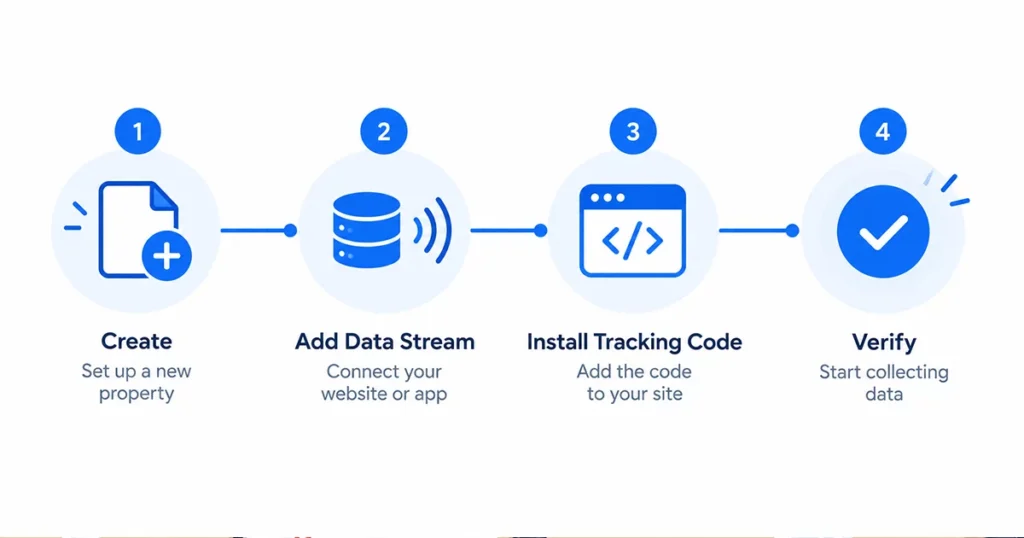
Start at analytics.google.com and sign in with the Google account you want managing this data — ideally a business account rather than a personal one, since ownership matters if you ever hand off management to someone else later.
Under Admin, create a new property, give it your website’s name, and set the correct time zone and currency for your business, since this affects how your reporting data gets organized. Once the property exists, add a data stream — select Web, enter your site’s URL, and GA4 generates a Measurement ID, a string starting with “G-” that uniquely identifies your property.
Getting that Measurement ID onto your actual WordPress site is where people usually take one of two paths. The simpler route, and the one I recommend for most small business sites, is pasting the Measurement ID directly into your SEO plugin’s integration settings — Rank Math has a Google Analytics tab under its Analytics module, and Yoast offers similar integration either natively or through a companion plugin. The more flexible route is installing Google Tag Manager on your site once, then managing GA4 and any other tracking scripts through Tag Manager going forward — more setup upfront, but easier to add new tracking later without touching your site’s code again each time.
Either way, give it a day, then open GA4’s Realtime report and browse your own site in another tab to confirm your visit shows up. This one check catches most setup mistakes immediately rather than three weeks later when you notice your reports look strangely empty.
GA4 vs Google Search Console — What Each One Actually Shows
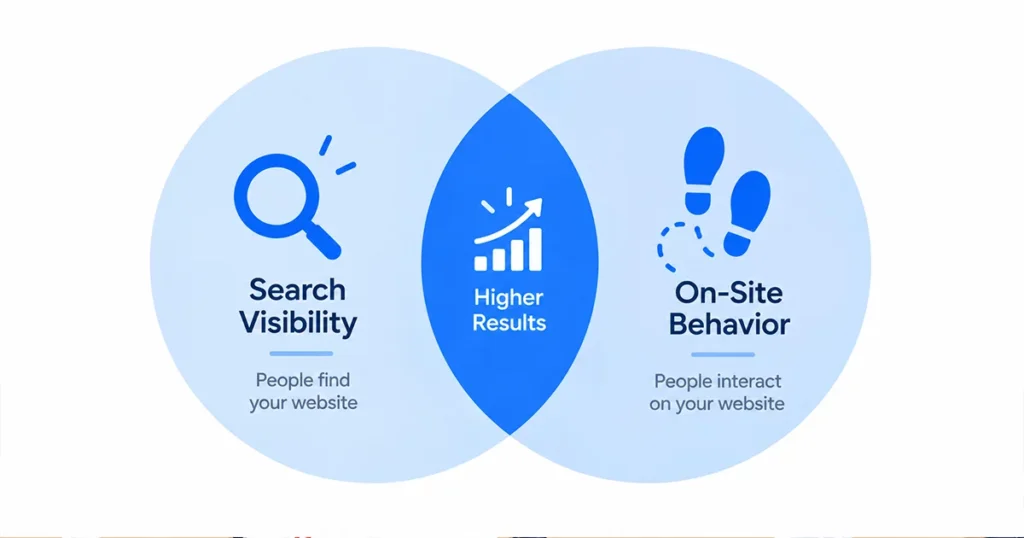
These two tools get confused for each other constantly, and understanding the actual split between them changes how useful both become.
Search Console shows you what happens before someone reaches your site — which keywords they searched, whether your page showed up, and whether they clicked. It’s entirely about your visibility inside Google’s search results. Search Console shows how many clicks and impressions your website is getting, but GA4 shows you what they actually do once they’re inside. Google Analytics 4 tracks user’s behaviour, where they click next and whether they fill out your contact form or bounce straight away.
Neither tool replaces the other, and using just one leaves a real gap. Search Console might show you a page getting hundreds of impressions with barely any clicks, which tells you to fix a meta title. GA4 might show you a page getting plenty of clicks but almost everyone leaving within seconds, which tells you the content or page speed itself is the problem once they’ve already arrived. Read together, they cover the entire journey from search result to conversion, which is a genuinely different diagnosis than either tool gives you alone.
Common GA4 Setup Mistakes
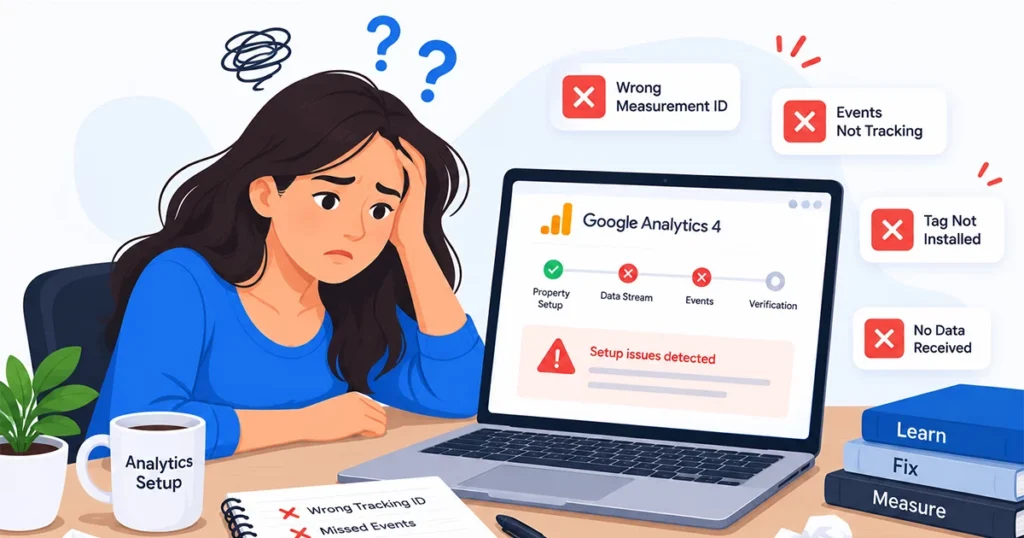
A handful of avoidable issues account for most of the confusion I see when reviewing a client’s GA4 setup.
Installing GA4 through both a plugin and Google Tag Manager simultaneously is more common than you’d expect, and it results in every visit being counted twice, quietly inflating every number in your reports without any obvious error message telling you something is wrong. Pick one method and stick with it.
Never checking the Realtime report after setup means installation mistakes can go unnoticed for weeks — by the time someone finally looks and finds an empty dashboard, there’s no way to recover the data that should have been collected in the meantime.
Leaving every advertising and personalization feature enabled by default, when you’re not actually running paid ad campaigns, adds complexity to your reports without adding any real value — it’s worth reviewing your data collection settings and turning off features that don’t apply to how the site is actually being used.
And treating GA4 as something to set up once and never open again is probably the most common mistake of all — the same trap a lot of people fall into with Search Console too. The data is only useful if someone’s actually looking at it and using it to make decisions.
Final Thoughts — Data You Actually Look At Beats Data You Don’t
Setting up GA4 correctly takes maybe twenty minutes once you know the steps. The part that actually creates value is what happens after — opening it regularly, comparing it against your Search Console data, and letting what you see there actually change decisions about your content, your pages, or where visitors are dropping off before converting.
This is the kind of foundational setup I include as standard when I build a website, rather than something added as an afterthought once a client asks why they can’t see any visitor data. If your site is missing this, or you’re not sure whether your existing setup is even working correctly, it’s worth checking sooner rather than assuming everything’s fine — the same way I’d recommend reviewing this alongside anything else covered under the affordable web design services I offer, since analytics and search visibility work best when they’re set up together from the start, not patched on separately later.
Frequently Asked Questions — GA4 Setup for WordPress
Do I need Google Tag Manager to use GA4, or can I skip it?
You can skip it entirely for a straightforward setup — pasting your Measurement ID directly into an SEO plugin like Rank Math is enough for standard page and event tracking. Tag Manager becomes worth the extra setup step specifically if you plan to add more tracking later — conversion events for specific buttons, third-party marketing pixels, custom event tracking — since it lets you manage all of that from one place without editing your site’s code each time you add something new.
Is Google Analytics 4 free to use?
Yes, the standard version used by the overwhelming majority of small business websites is completely free, with no limit that a typical site would realistically hit. Google does offer a paid enterprise tier, GA4 360, aimed at very large organizations with massive traffic volumes and advanced support needs — not something a small business website needs to think about.
How long does it take for GA4 to start showing data after setup?
Realtime data should appear within minutes of a correctly configured setup, which is exactly why checking that report immediately after installation is the fastest way to confirm everything’s working. Standard reports — the ones showing trends, audience breakdowns, and behavior over time — typically take 24 to 48 hours to populate fully as GA4 processes and organizes the incoming data.
Can I recover historical data if I only just set up GA4?
No, and this is worth knowing upfront rather than discovering later. GA4 only tracks data from the moment it’s actively installed and correctly configured — it can’t retroactively pull in visits from before setup. If your site previously had Universal Analytics, that historical data exists separately and isn’t automatically carried over into GA4, since the two are fundamentally structured differently.
Does adding Google Analytics 4 slow down my WordPress website?
The tracking script itself is small and has a negligible direct impact on load time for most sites. Where speed problems actually show up is when several different tracking or marketing scripts get stacked on top of each other over time without anyone reviewing what’s still necessary. Keeping your tracking setup intentional — one analytics tool, only the specific event tracking you’ll actually use — avoids this becoming a real performance issue later.