
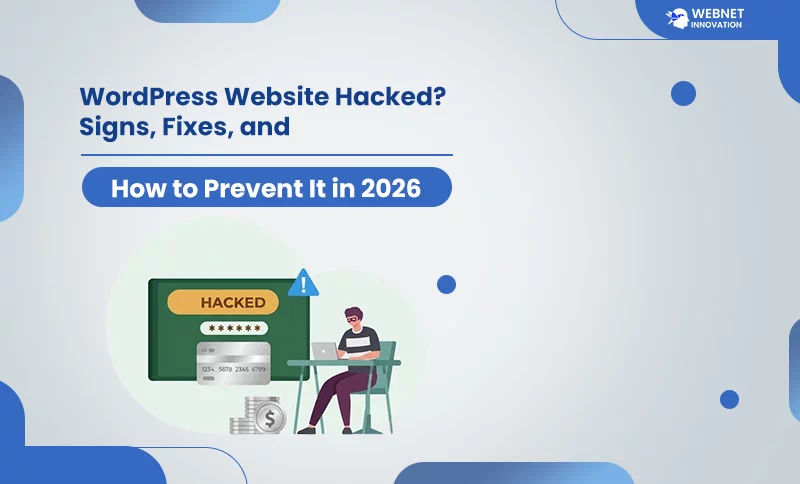
A hacked WordPress website usually shows warning signs like unknown admin users, unfamiliar files in your hosting account, sudden Google warnings, strange redirects, or a sharp drop in traffic and rankings. Fixing it involves taking the site offline temporarily, changing all credentials, scanning for malware, and restoring from a clean backup. Prevention relies on WordPress website security fundamentals — regular updates, strong login protection, and consistent malware monitoring.
Table of Contents
There is a particular kind of panic that comes with opening your WordPress dashboard and finding something that should not be there — a plugin you never installed, an admin account with a name you do not recognize, or a warning from Google saying your site “may be hacked.” For a small business, this is not just a technical inconvenience. It is lost revenue, damaged trust, and in many cases, a Google ranking hit that takes months to recover from.
It is a common fact that this happens to a lot of WordPress websites, and you can’t predict how it happens. WordPress runs a significant share of the entire internet, and its open, plugin-driven structure means there are simply more entry points for something to go wrong compared to a closed platform. This guide covers exactly what to look for if you suspect your site has been compromised, the actual steps to fix it, and — more importantly — how to build a level of WordPress website security that keeps this from happening again.
Signs Your WordPress Website Has Been Hacked
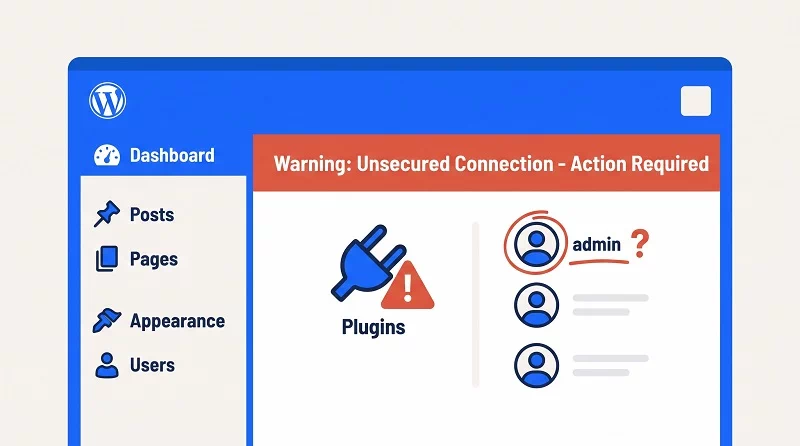
Most hacked WordPress websites do not announce themselves with an obvious defacement anymore — attackers today often prefer to stay hidden for as long as possible, quietly using your site’s resources or injecting spam links that only search engines notice at first. This makes recognizing the early signs genuinely important.
Watch for unfamiliar admin or editor accounts appearing in your Users section — this is one of the clearest signals, since a legitimate attacker’s first move after gaining access is often creating a backup account for themselves. Without your permission, changes to your homepage or unexpected wrong redirection that send your visitors to an unrelated website are another signal, though far less common than the quieter signs. More subtle indicators include a sudden, unexplained drop in Google traffic or rankings, a browser warning that says “This site may be hacked” appearing before Google search results, or your hosting provider emailing you about unusual server activity or resource usage. Slow site performance that appeared suddenly, with no recent changes on your end, is also worth investigating — malware often runs background processes that quietly consume server resources. If your site suddenly shows unfamiliar files in the file manager, or plugins and themes you did not install, treat that as a serious signal requiring immediate action rather than something to check “later this week.”
How to Fix a Hacked WordPress Site — Step by Step
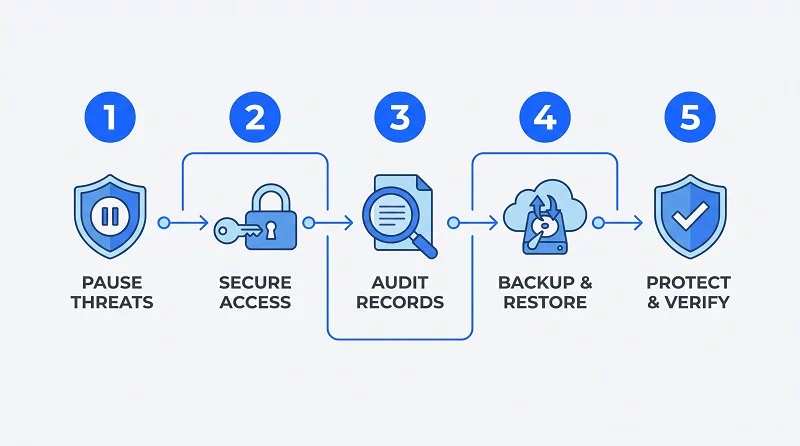
If you have confirmed your site is compromised, the sequence you follow matters — doing things out of order can make recovery harder or destroy evidence that would help identify how the attacker got in.
Take the site offline temporarily: Keep your website in maintenance mode until it recovers. It is a simple process by using the Elementor tools maintenance mode feature. You can find an alternative on the WordPress plugin repository and install it enable it. The maintenance mode protects your visitors from malicious URLs or codes that can steal users’ private data. The top hosting provider gives their clients automatic malware scanners that can flag threats without deleting their critical files
Back up the current, compromised state before changing anything: When you start the process to repair your website, take a backup of the infected website. The infected website can help you identify the hacking files and exactly how the breach happened.
Change every credential connected to the site: Hackers continue to try to get login credentials using their hacking software, and once they succeed in accessing the website backend, they leave behind a bunch of malicious files. Change your current credentials immediately and use the best WordPress plugin to protect your website.
Scan for and remove malware: There are several reputable WordPress security plugins available on the internet. Use a dedicated malware scanner to check files and the database for injected code, backdoors, and suspicious scripts. This step often reveals files that look legitimate at a glance but contain hidden malicious code.
Restore from a clean backup if one exists from before the compromise: It is a good habit to take a backup twice a month. When you have a fresh backup without any suspicious files or codes, it keeps your website safe and save your time. You can delete the infected website data from your server and restore your website by using a fresh backup. If you don’t have a fresh backup, you could lose your revenue.
Update everything before bringing the site back online: WordPress core, every theme, and every plugin should be on their latest versions before you restore public access — many hacks exploit a specific known vulnerability in an outdated version, and restoring an old, unpatched site simply reopens the same door.
WordPress Security Checklist for Small Business
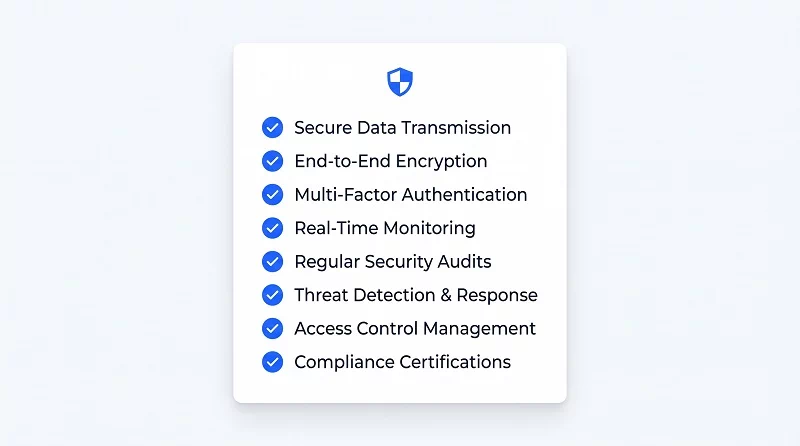
Prevention is genuinely more manageable than recovery, and most of what keeps a WordPress website secure comes down to a small number of consistent habits rather than complex technical work.
- Keep WordPress core, themes, and plugins updated at all times — most successful attacks exploit a known vulnerability in outdated software, not some sophisticated unknown flaw
- Use strong, unique passwords for every account connected to the site, and enable two-factor authentication on admin and editor accounts specifically
- Remove any plugin or theme you are not actively using — an inactive plugin can still be exploited even when it is not switched on
- Change the default login URL away from the standard wp-admin or wp-login.php address, which reduces exposure to automated bot attacks scanning for that exact path
- Install a reputable security plugin that includes a firewall and malware scanning, and actually check its reports rather than installing it and forgetting about it
- Choose hosting that takes security seriously — a host that actively monitors for suspicious activity and keeps its own server software patched adds a meaningful layer of protection you cannot replicate on your own
- Maintain regular, automated backups stored somewhere other than your hosting account itself — a backup stored only on the same server offers little protection if that server is compromised
- Limit user roles carefully — not every team member needs administrator access, and reducing the number of full-access accounts reduces the number of ways a breach can begin
Working with an established website designing company that treats security as part of the build process, rather than an afterthought added later, means many of these fundamentals are already in place from day one.
How to Prevent WordPress Hacking in 2026 — What’s Actually Changed
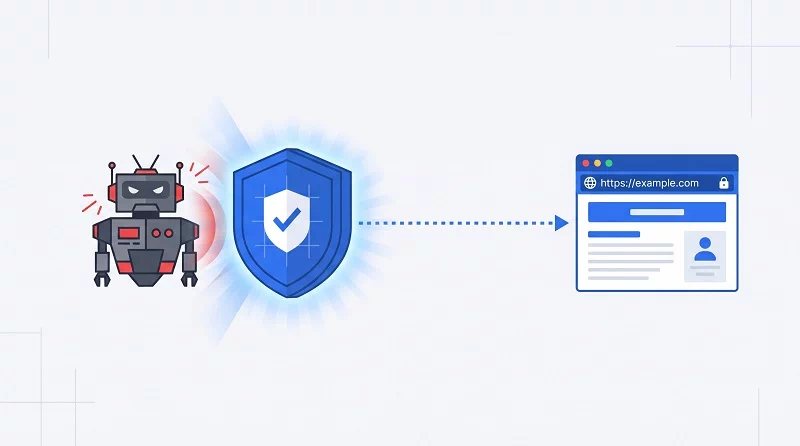
The nature of WordPress attacks has shifted meaningfully in recent years, and understanding this shift helps explain why some older security advice is no longer sufficient on its own.
Most attacks today are not manual — they are automated scans running continuously across millions of websites simultaneously, checking for the same handful of common weaknesses: outdated plugins, reused or weak passwords, exposed login pages, and misconfigured settings. Your website is rarely targeted personally. It becomes vulnerable the moment it happens to expose one of these common weaknesses, which is exactly why consistency matters more than any single advanced security measure.
A newer and increasingly common threat involves automated brute-force attempts against login pages, often powered by tools that can try large numbers of password combinations quickly. This is precisely why two-factor authentication and moving away from the default login URL have become baseline recommendations rather than optional extras — they specifically counter this kind of automated attack pattern.
Beyond your own website, security also affects things you might not immediately connect to it. A hacked site frequently gets flagged by Google, which can suppress or remove it from search results entirely — undoing months of work on your on-page SEO checklist almost overnight. It can also quietly damage the local SEO for small business presence you have built, since a compromised website often gets your Google Business Profile flagged for review as well, and recovering trust with both search engines and customers after a public breach takes considerably longer than preventing one in the first place.
WordPress Maintenance vs Security — What’s the Difference
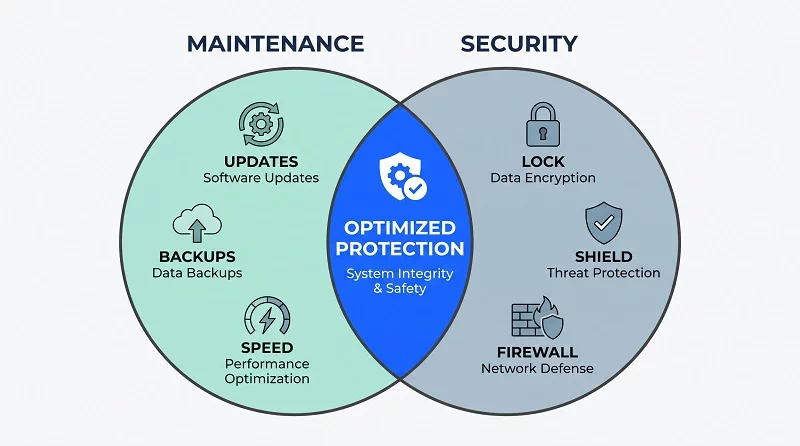
These two terms get used almost interchangeably, but understanding the distinction matters for both your own website and if you are considering offering this as a service to clients.
WordPress maintenance covers the broader, ongoing health of a website — updating core software, plugins, and themes, monitoring site speed, checking for broken links, testing that forms and functionality still work correctly after updates, and keeping backups current. Maintenance is about a website continuing to run smoothly over time.
Security specifically focuses on protecting the website from unauthorized access and malicious activity — firewalls, malware scanning, login protection, and incident response if something does go wrong. Security is a subset of good maintenance, but treating it as identical to general maintenance is a common mistake — a site can be technically “maintained,” with all updates applied, and still lack proper login protection or malware monitoring. For a small business without dedicated technical staff, the practical takeaway is that both need to be handled together, consistently, rather than as occasional one-off tasks. This is exactly the kind of work that fits naturally into an ongoing retainer relationship rather than a single project — which is worth considering if your website was built by a professional WordPress developer who can offer this as continued support rather than leaving you to manage it alone once the initial project ends.
Final Thoughts — Security Is a Habit, Not a One-Time Fix
The businesses that rarely deal with a hacked website are not necessarily using more expensive tools than everyone else. They are the ones who treat WordPress website security as an ongoing habit — updates applied consistently, backups checked regularly, and credentials taken seriously — rather than something addressed once during the initial build and then ignored.
If your website has never been properly audited for security, or if you are not entirely sure when it was last backed up, that uncertainty itself is worth resolving before it becomes an emergency. A website that took months to build and rank can be compromised in minutes, and the cost of prevention is consistently lower than the cost of recovery, both in money and in the trust it takes to rebuild with customers and with Google.
If you would rather hand this responsibility to someone who builds security into the process from the start, working with a professional WordPress developer for ongoing maintenance and security means your website stays protected without needing to become a technical expert yourself.
Frequently Asked Questions — WordPress Website Security
How quickly can a hacked WordPress website be fixed?
A straightforward malware infection, caught early with a clean backup available, can often be resolved within a few hours by restoring the backup and updating all software before bringing the site back online. More complex compromises — where the attacker has been present for weeks and multiple backdoors exist, or no clean backup is available — can take several days of careful manual investigation. The speed of recovery depends heavily on how quickly the issue was noticed and whether reliable, recent backups exist.
Can a hacked website hurt my Google rankings permanently?
Not permanently in most cases, but recovery is rarely instant. Once Google flags a site as potentially hacked, it typically suppresses it from search results or shows a warning to searchers until the issue is resolved and verified as fixed through Google Search Console. After cleanup, requesting a review through Search Console and demonstrating the site is genuinely secure usually restores normal visibility within one to a few weeks, though rankings sometimes take additional time to fully recover to their previous position as Google rebuilds trust in the site.
Do I need a security plugin if my hosting provider already offers protection?
Managed hosting security typically protects the server level — things like network monitoring and infrastructure-level firewalls — but does not usually address WordPress-specific vulnerabilities like weak passwords, outdated plugins, or malicious code injected into your specific files. A dedicated WordPress security plugin adds a layer focused specifically on your website’s software and content, which server-level protection alone does not cover. Using both together, rather than relying on just one, gives more complete protection.
Is it worth paying for ongoing WordPress maintenance instead of handling it myself?
For a business owner without technical background or spare time, yes — the cost of a missed update leading to a hack, and the resulting downtime, lost revenue, and recovery cost, is typically far higher than a modest monthly maintenance fee. For businesses comfortable managing updates and monitoring themselves, self-managed maintenance is workable, provided it is done consistently rather than sporadically — inconsistency, not lack of technical skill, is what usually leads to a website becoming vulnerable.
What is the first thing I should do if I think my website has been hacked?
Put the site into maintenance mode or take it offline temporarily to protect your visitors, then change your WordPress admin password immediately, even before doing anything else. This limits further damage while you investigate and prevents an attacker who still has active access from making additional changes while you work through the rest of the recovery process.