

A real WordPress backup needs to capture both your database — posts, pages, WooCommerce orders, settings — and your files — themes, plugins, and uploaded media. Missing either one produces a broken restore when you actually need it. UpdraftPlus remains the most widely used free option, with WPvivid and BlogVault as strong alternatives depending on whether you want more free features or off-server reliability. Store copies away from your main hosting account, not just on it.
Table of Contents
I’ve had this exact conversation with more clients than I can count. Something breaks — a bad plugin update, a hacking attempt, a careless edit — and the first question is always “we have backups, right?” Too often, the honest answer turns out to be “sort of,” which in a real emergency is functionally the same as no.
A backup that actually works when you need it isn’t complicated to set up. It just requires understanding a couple of things most people never think about until the moment they desperately need to.
What a Real WordPress Backup Actually Needs to Include?
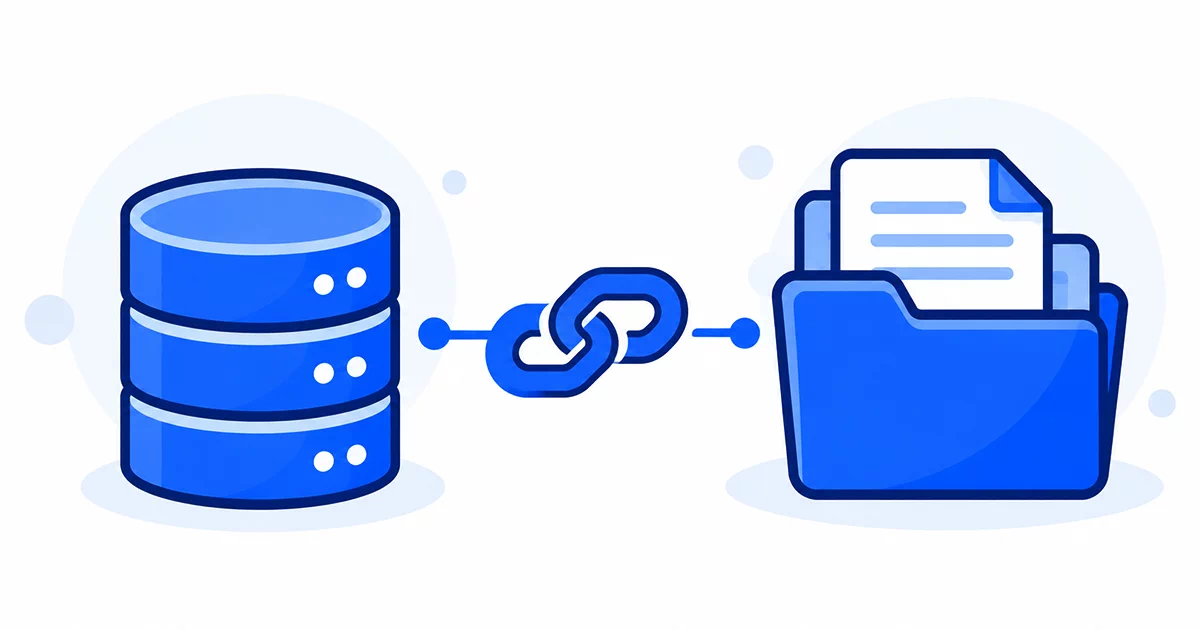
A WordPress site is really two separate things sitting together, and a backup that only covers one of them is a broken safety net you won’t discover until it’s too late.
Your database holds everything you’d think of as your actual content — every post and page, WooCommerce orders and customer records if you run a store, comments, and the settings for every plugin you’ve configured. Your files are everything else — your active theme, every installed plugin, and all the media you’ve uploaded, images especially. Restore only the database after something goes wrong, and you’ll get your content back with a broken or missing theme and no images. Restore only the files, and you’ll get your design back with none of your actual content. A genuinely reliable backup plugin captures both automatically, on a schedule, without you needing to remember to trigger anything manually.
Best WordPress Backup Plugins in 2026?
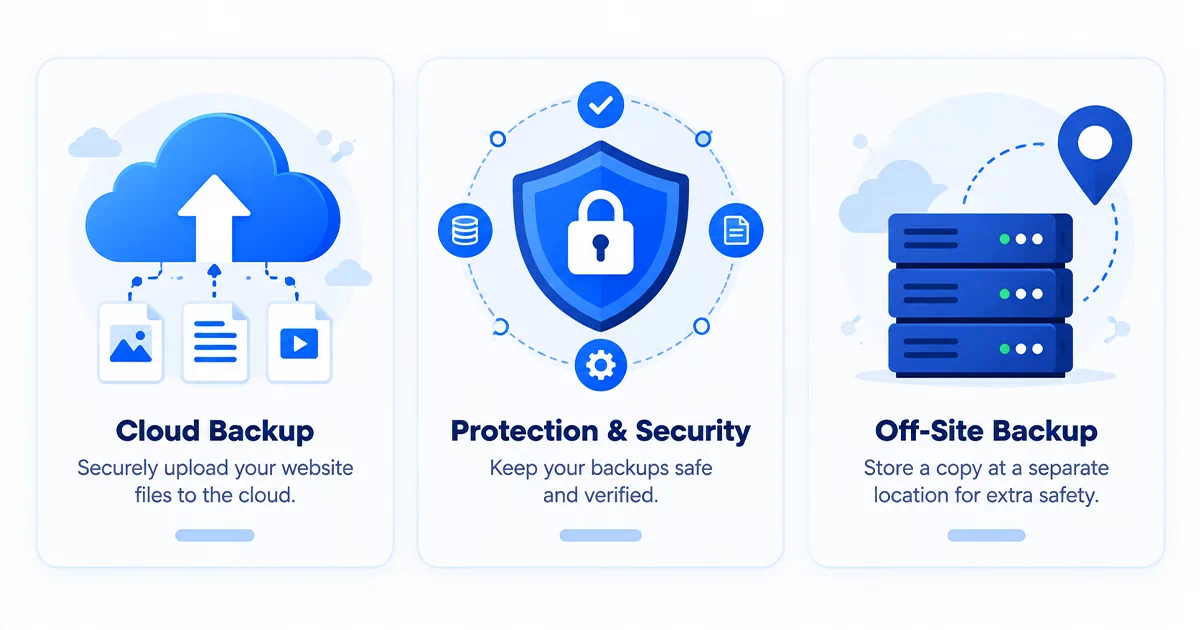
UpdraftPlus remains the plugin I recommend most often as a starting point, and there’s a simple reason it’s the most widely installed backup plugin on WordPress.org — the free version genuinely covers what most small business sites need: scheduled automatic backups, storage to Google Drive or Dropbox, and one-click restoration straight from your dashboard. Its main limitation is that the free tier only does full backups rather than incremental ones, which can get slow and storage-heavy once a site grows large.
WPvivid is worth a close look if you want more advanced features without paying anything. Its free version includes automated scheduling across multiple cloud destinations — Google Drive, Dropbox, Amazon S3, OneDrive — features that plenty of competitors charge for even on paid tiers. BlogVault sits in a different category entirely. Rather than running backups from inside your WordPress installation, it operates from its own separate cloud infrastructure, meaning your backup stays safe and accessible even if your own server goes down completely. This off-server approach matters most for WooCommerce stores or any site where losing even a few hours of data would genuinely hurt — it’s a paid service with no free tier, but for a business depending heavily on its website, that’s often a reasonable tradeoff.
How Often Should You Back Up Your WordPress Site?
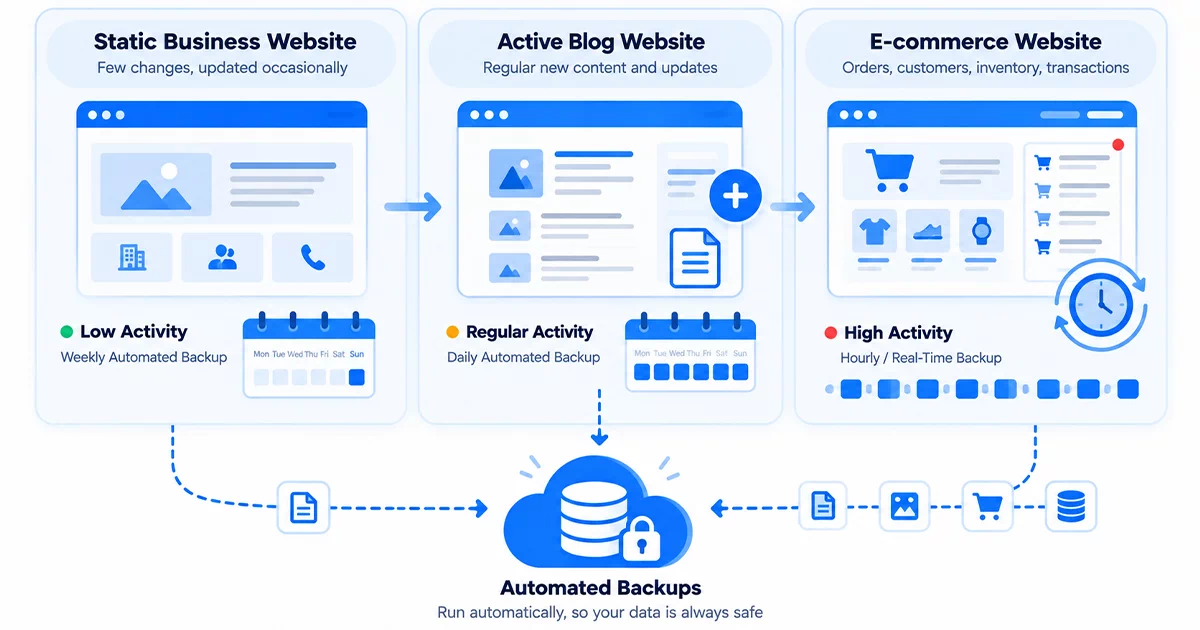
The right backup frequency depends entirely on how often your site actually changes, not a fixed universal rule.
A mostly static site — a business brochure site updated occasionally — is reasonably covered with weekly automated backups. A blog publishing new content regularly benefits from daily backups, so a bad day never costs more than a day’s work to recover. A WooCommerce store processing real orders needs backups at least daily, and if you’re handling a meaningful volume of transactions each day, moving toward real-time or hourly backup coverage is worth the extra cost — losing even a few hours of order data on an active store is a real financial loss, not just an inconvenience.
Whatever frequency you land on, the backup needs to actually run automatically. A backup you have to remember to trigger manually is one that reliably doesn’t happen the week it would have mattered most.
The Backup Mistake That Ruins Most Recovery Plans
Here’s the mistake I see most often, and it’s genuinely dangerous because it looks completely fine right up until the moment it isn’t. Storing your backups only on the same hosting account as your live website means that if your server has a serious failure, gets compromised, or your hosting account itself is suspended or lost, your backup disappears along with the site it was supposed to protect. This connects directly to the same risk covered in signs your WordPress website has been hacked — a compromised server can take everything down with it, backup included, if that backup was never actually stored anywhere separate.
The fix is straightforward: always send backups to off-site storage — Google Drive, Dropbox, Amazon S3, or a dedicated service like BlogVault that’s built entirely outside your own server from the start. It costs nothing extra with most free plugins, and it’s the single detail that separates a backup that looks fine on paper from one that actually saves you.
Final Thoughts — A Backup Is Only as Good as Its Last Test
The uncomfortable truth about backups is that almost nobody thinks about them seriously until right after they needed one and didn’t have it working properly. Setting one up correctly takes maybe twenty minutes. Confirming it actually restores correctly takes another ten. Together, that’s a small amount of time against potentially losing a website that took months or years to build.
This is exactly the kind of foundational setup I build into every project rather than leaving as something a client discovers is missing later — the same thinking behind properly configuring security plugins or choose WordPress hosting for small website that actually includes reliable backup infrastructure to begin with. If you’re not confident your current backup setup would genuinely save you today, that’s worth resolving this week, not after something goes wrong. It’s exactly the kind of technical foundation I include as standard in the affordable web design services I offer.
Frequently Asked Questions — WordPress Backups
Are hosting-provided backups enough, or do I still need a plugin?
Hosting backups are a helpful extra layer, but relying on them alone carries real risk. If your hosting account itself has a problem — suspension, billing issue, or a server-level incident affecting the host — those backups can be caught up in the same failure. A separate backup plugin storing copies off-site, independent of your hosting account, gives you a genuinely independent safety net rather than a single point of failure.
Can I run two backup plugins at the same time for extra safety?
Technically yes, though it’s rarely necessary and can create resource conflicts on shared hosting if both are running large backup jobs simultaneously. A better approach for extra safety is using one solid plugin but configuring it to send backups to two separate storage destinations — Google Drive and Dropbox, for instance — rather than running two full backup systems that compete for the same server resources.
How do I actually know my backups are working before I need them?
The only real way to know is testing an actual restore, not just confirming a backup file was created. Most quality backup plugins support restoring to a staging site or a temporary test environment, which lets you confirm the whole database-and-files package genuinely restores correctly without risking your live site. Doing this once every few months catches a broken backup while it’s still just an inconvenience to fix, not a crisis.
Is a free backup plugin actually reliable enough for a business website?
For most small business sites, yes — UpdraftPlus and WPvivid’s free tiers cover the core requirements genuinely well: scheduled backups, off-site storage, and one-click restore. The main reasons to consider paying are incremental backups for larger sites, real-time backup frequency for active stores, or off-server architecture like BlogVault for businesses where even a few hours of downtime carries real financial cost.
What should I do immediately after installing a backup plugin for the first time?
Run a full manual backup right away rather than waiting for the first scheduled one, confirm it actually completed successfully, and then do one test restore to a staging environment if your plugin supports it. This confirms the entire setup works correctly from day one, rather than discovering a configuration mistake only during an actual emergency, when there’s no room left for troubleshooting.